Apple Mail search not working? Here's how to fix it
When Apple Mail can't find an email you know is there, the mail is almost never gone. The index Mail searches is out of date or damaged. Check that you're searching every mailbox, rebuild the mailbox with Mailbox › Rebuild, and make Spotlight re-index your Mail folder. While you fix it, Gmail on the web can still find the message.
Why can't Apple Mail find emails I know are there?
Apple Mail doesn't read every message each time you search. It looks things up in an index, and that index lives in two places: Mail's own database for each mailbox, and Spotlight, the search system built into macOS. When either one falls behind, search quietly returns nothing, or returns some results and misses the one you need.
The usual causes:
- Spotlight is damaged or still indexing. After a macOS update, a migration to a new Mac, or a crash, Spotlight can spend hours rebuilding. Until it finishes, Mail's results are partial.
- A mailbox index has drifted. Large syncs and interrupted downloads can leave Mail's list of messages out of step with what's on the server.
- The message was never downloaded. Mail can only search text it has on your Mac. A message whose body hasn't downloaded yet can't match a word inside it.
- Gmail's All Mail isn't visible to Mail. Gmail stores archived mail in All Mail. If that label is hidden from IMAP, Mail never sees archived messages at all.
- You're searching one mailbox. Search can be limited to the mailbox you have selected, so mail in Archive or another account is left out.
How do I fix Apple Mail search?
Work through these in order. The first two take a minute. The later ones take longer, so only move on if the earlier ones didn't help.
1. Check where you're searching
Apple Mail searches the mailbox you have selected. Type your search, then look at the Favorites bar under the toolbar and choose All, or click Search all mailboxes if Mail offers it. Even then, Apple says Mail doesn't search the Junk mailbox or encrypted messages, so check Junk by hand if the email might have landed there.
2. Let Mail finish downloading
Choose Window › Activity (Control-Command-0) to see whether Mail is still downloading. If it is, leave it running and try again later. Searching during a big first sync often misses older mail.
3. Rebuild the mailbox
Select the mailbox in the sidebar, then choose Mailbox › Rebuild. For Gmail and other IMAP accounts, Mail throws away its local copy and downloads the messages again from the server. The mailbox can look empty for a while. That's expected, and nothing on the server is deleted. Rebuild one mailbox at a time. For Gmail, start with All Mail, since that's where archived messages live.
4. Make Spotlight re-index your mail
Apple's own fix is to add a folder to Spotlight's privacy list and then remove it, which forces a fresh index. On macOS Ventura or later, open System Settings › Spotlight, click Search Privacy (or Spotlight Privacy), and add your Mail folder with the + button. In the file picker, press Shift-Command-G and type ~/Library/Mail to reach it. Wait a few seconds, select it, click the minus button, then click Done. Apple describes the steps in About Spotlight indexing and search results.
There's also a Terminal command, sudo mdutil -E /, which erases and rebuilds the Spotlight index for your whole startup disk. Use it with care. It re-indexes everything, not only mail, it can take hours on a full disk, and Spotlight results everywhere stay patchy until it's done. Try the folder method first.
5. Turn the account off and on again
If one account keeps failing, open System Settings › Internet Accounts, select it, and turn Mail off, then back on. Or remove the account and add it again. Mail downloads everything fresh. Mail kept on the server comes back. Before you do this, make sure nothing you need exists only on this Mac.
6. For Gmail, check what Mail is allowed to see
In Gmail on the web, open Settings › See all settings › Labels and make sure All Mail has Show in IMAP ticked. If it's off, Apple Mail can't search archived mail. Our Apple Mail and Gmail fix guide covers the other settings that trip people up.
7. Search in Gmail on the web while you wait
Gmail's own search runs on Google's servers and doesn't depend on your Mac's index. If you need a message now, find it there. Search operators such as from: and has:attachment narrow things fast. Our Gmail search operators cheat sheet lists them.
How does MailMind search work?
We built MailMind's search because "it won't find mail I know is there" is the complaint we heard most about Mac mail apps. MailMind keeps its own search index on your device, and for older mail it also asks the mail server: Gmail's search for Gmail accounts, the server's own search for IMAP accounts. The two sets of results are merged, so a message you haven't downloaded yet can still turn up.
It's fast, too. In our test with a mailbox of 100,000 emails, 20,000 of them with full bodies, a one-word search took about 0.3 seconds and a rare phrase about 5 milliseconds. The whole index used 252 MB on disk.
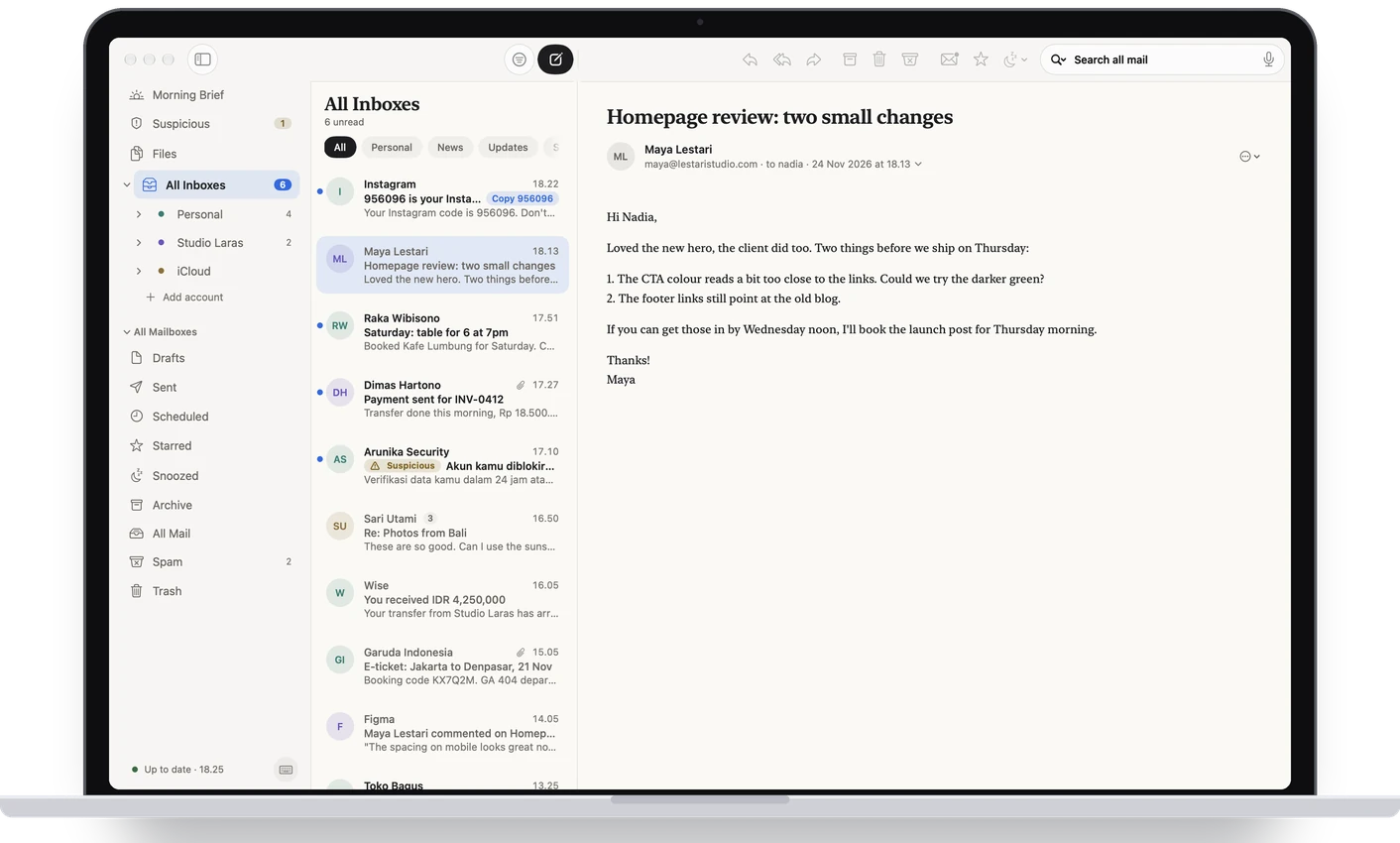
A few things work differently from Apple Mail:
- Quotes mean exact. Put words in quotes and MailMind matches them exactly, with no guessing.
- Typos are fixed out loud. If an unquoted word matches nothing, MailMind tries the closest word in your mail and says so: "No exact matches. Showing results for invoice", with a button to search exactly what you typed.
- Gmail's search words work.
from:and the other Gmail operators are understood, and words typed together are read as Gmail reads them, so "hellokitty" finds "Hello Kitty". - Older mail is searched by itself. Once you stop typing, MailMind asks the server for older mail too. No need to press Search.
- Newest first, or Best Match. Results start with the newest. Switch to Best Match and the subject and sender count most. MailMind remembers your choice.
- You choose the scope. Search all accounts, one account, or only the mailbox you're in, and switch the account or mailbox right from the results.
- It shows up in Spotlight too. Recent mail can be found from Spotlight and Siri. You can switch that off in Settings, and nothing shows while MailMind is locked.
- It takes you to the words. Opening a result scrolls to the first match, and a match bar ("1 of 3") steps through the rest. On Mac, ⌘G goes to the next one.
There's no rebuild button, because there's nothing to rebuild by hand. If something looks out of date, Go › Sync Now (⌥⌘R) checks the server again. For how this compares with Apple Mail overall, see MailMind vs Apple Mail. Text inside PDF attachments is included in MailMind's search too. Our guide to finding a word inside an attachment has the details.
Frequently asked questions
Why does Apple Mail search show no results?
Usually because the index Mail searches is out of date or damaged, not because the mail is gone. Check that the search covers All mailboxes, let Mail finish downloading, then rebuild the mailbox and make Spotlight re-index your Mail folder.
Does rebuilding a mailbox in Apple Mail delete my email?
No. For Gmail and other IMAP accounts, Mail deletes its local copy and downloads the messages again from the server. The mailbox can look empty until the download finishes, but nothing on the server is removed.
How long does Spotlight take to re-index mail?
It depends on how much is on your disk. Re-indexing only the Mail folder is usually much quicker than re-indexing the whole disk, which can take hours.
Why can't Apple Mail find my archived Gmail messages?
Archived Gmail messages live in All Mail. If All Mail is hidden from IMAP in Gmail's Labels settings, Apple Mail never downloads them, so it can't search them. Turn on Show in IMAP for All Mail.
Do I need to rebuild anything in MailMind?
No. MailMind keeps its own index up to date and also asks the mail server for older mail. If something looks stale, Go › Sync Now checks the server again.
A calm, private mail app for Mac, iPhone and iPad. Your mail stays on your devices, and the AI runs on them too. See what it does.
Get MailMind