What’s new in MailMind
Every release, newest first. Most of what changes starts as an email from someone who uses MailMind, and the release notes say so when it does.
On the way
Outlook, Hotmail and Microsoft 365. Sign in with Microsoft, on Mac and iPhone. This page will say when it’s in.
-
BetaBuilds 80–99
November 2026Lately in TestFlight
What testers got in November, on the way to 1.0.
- A new look. Warm paper, serif headings, one blue, and a gold mark on anything AI made. Plain emails read in a serif, like a letter, and dark mode is a neutral graphite. Every feature, menu and shortcut stays the same.
- On-device AI on iPhone and iPad. Turn it on in Settings, then Summarize and Suggest replies sit under an email’s subject, and the sparkle button rewrites or translates your draft, with Undo. It all runs on your device.
- A sharper Morning Brief. “Waiting for your reply” lists only people waiting on you, not notifications, newsletters or no-reply mail. On iPhone it’s a card at the top of All Inboxes, and on the Mac “Waiting on others” notices when they answer.
- Search that meets you halfway. It opens on the people you write to most and your last searches, checks older mail on the server once you stop typing, lets you pick the account and mailbox from the results, and reads “hellokitty” as “Hello Kitty”.
- A smarter Scam Shield. It knows 127 more brands worldwide, flags real bank and shop mail less often, and recognises verified company logos. If it gets one wrong you can report it; only the domain and the reasons are sent, and you can turn that off.
- A calm first day. Once your first account syncs, MailMind shows your inbox sorted into people, newsletters, updates and anything risky. One tap on Clear tidies the newsletters and updates, with Undo.
- Widgets and counts you can trust. A Lock Screen and Home Screen widget on iPhone and iPad shows new mail and Screener counts, never who wrote. Every count now covers all your mail, and the app icon matches the sidebar.
- Works offline. An email you send offline waits and goes out when you’re back, and on iPhone the title says how many are waiting.
- Templates by shortcut. Type / or ; and a shortcut like /thanks to drop one in. {{Name}} fills with the recipient’s name, and a template can add To, Cc and Bcc.
- MailMind Pro, explained. A plain Free vs Pro table, a trial timeline with a real reminder 2 days before it ends, and instant Gmail alerts on iPhone.
- Move and arrange your way. On the Mac, drag emails onto any mailbox or label. On iPhone, Edit in Mailboxes reorders your inboxes, and that order stays on the iPhone. Adding Yahoo or iCloud now walks you through the app password it needs.
- Lots of small things. Labels show before the subject, as in Gmail, and on iPhone they sit inside their own inbox in Mailboxes. Mail sent without a name shows the sender’s name, not just their address. On the Mac, ⌘Z undoes your last archive or move, and closing a draft asks Save, Delete or Keep Writing.
-
1.0Coming soon
The first release
MailMind for Mac, iPhone and iPad.
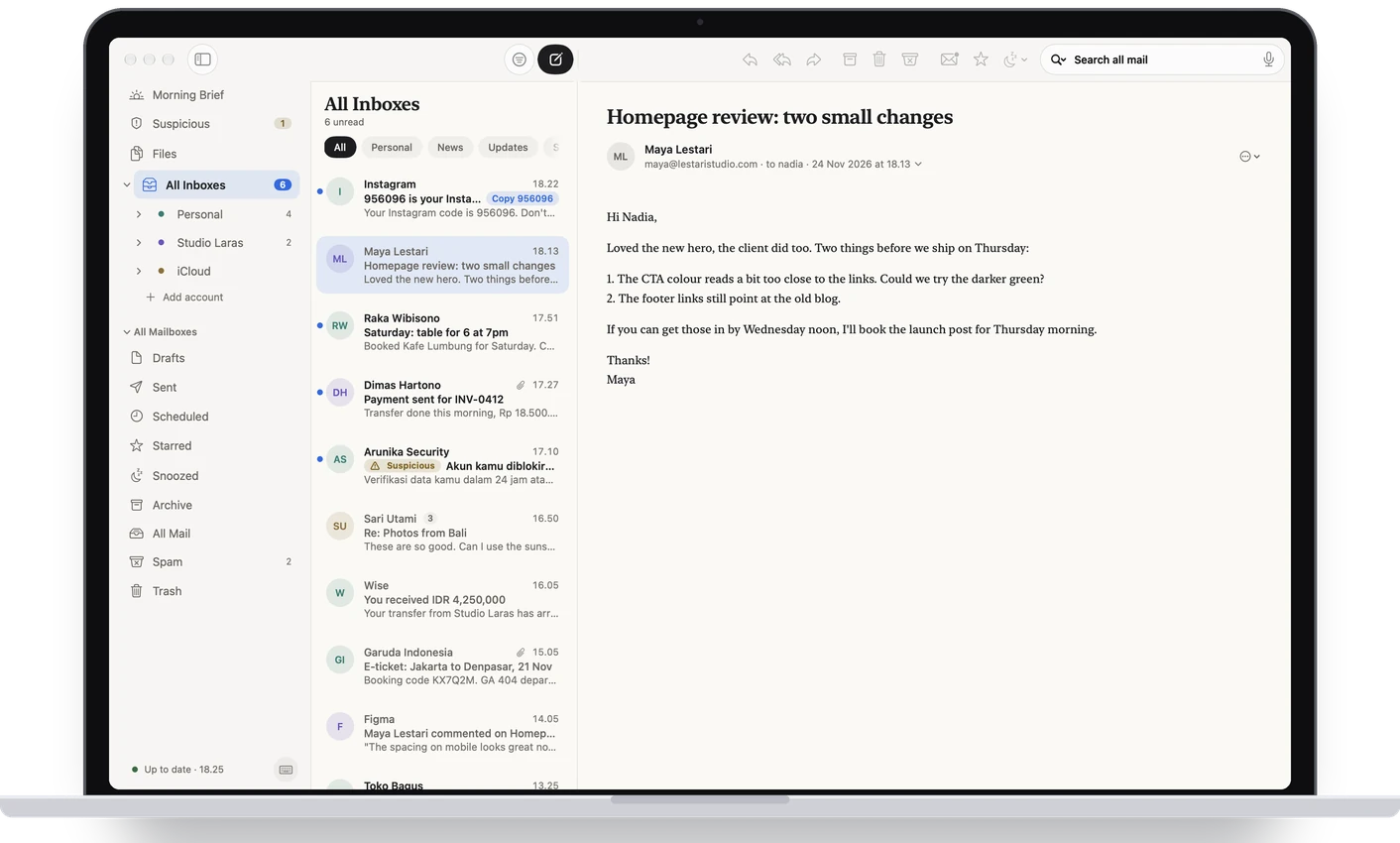
- Every account, one calm inbox. Gmail, iCloud, Yahoo and any IMAP account (Outlook is coming), sorted so real conversations come first.
- Your mail stays yours. No MailMind server holds your mail or sign-in, and summaries are written on your own device.
- Scams called out, with the reason. A look-alike domain, a failed sender check, a link that goes somewhere else.
- One key per action. E archives, # deletes, J and K move. On a Mac you can switch to Gmail’s own shortcuts, two-key ones like G then I included.
- Search that finds it. Typos forgiven,
from:and other Gmail words understood, text inside PDFs included, and the email opens on the match. - Big files still get there. Drop files in to attach them. Photos shrink to the size you pick, and anything over Gmail’s limit goes as a Google Drive or share link, which you can clear out of Drive later.
- Done from the notification. Archive, mark read or trash a new email without opening it, and choose what each swipe does.
- Read and write side by side on iPad. Replies open next to the email, any draft can move into its own window, and a full-screen reader steps through your mail.
- Press and hold to act. A preview of the email with Reply, Mark, Snooze, Archive and Trash, and a Select button for handling several at once.
- Snoozed and Drafts, always findable. See what's sleeping and when it comes back, on every device, and pick up a draft where you left it.
- People as names, not addresses. Recipients show as chips, newsletters carry an Unsubscribe right at the top, and search offers one-tap filters.
- Profiles for work and home. Group your accounts and switch between them; the inbox, counts and notifications follow, and a Focus can switch for you.
- Your Gmail filters, editable here. See each one in plain words, then add, change or delete it. They keep working in Gmail on the web.
- Newsletters can go dark too. Turn it on and designed emails follow dark mode, while brand colours and pictures stay as sent. One that looks wrong goes back with a tap.
- Send and Archive. Reply and clear the conversation from your inbox in one step, with Undo if you change your mind.
- Know who's new. A first email from a new sender asks once: Let Through or Block. Google Contacts can join the To field's suggestions.
- Write the way you type.
**bold**,*italic*, links and lists turn into formatting as you write, and @ plus a name mentions someone and adds them to To. - Labels where you need them. Labels show before an email’s subject, each inbox opens to its own labels with unread counts, and you can rename or delete them from the sidebar.
- A PDF email shows the PDF. When an email is only a PDF, like a bank announcement, its pages show right in the email.
- Unsubscribe in one click. MailMind asks the sender to stop and keeps their later mail out of your inbox, with Undo.
- Signatures that follow you. Write one once and it’s on all your devices, or save it to Gmail so the web uses it too.
- AI on iPhone and iPad too. Summarize a thread or get suggested replies right under the subject, and rewrite or translate a draft, all on the device. It stays off until you turn it on.
- New mail at a glance. A widget for the Home Screen and Lock Screen shows how many new emails you have, never who wrote.
- Drag mail where it goes. On a Mac, drag emails onto Trash, Spam, Archive, a label or an inbox, and they move just as the menu would. A folded account opens as you hold over it.
- Your inboxes, your order. Put your inboxes in the order you like on each device. Your iPhone keeps its own order, whatever the Mac does.