How to switch from Apple Mail without losing your rules and signatures
If your mail is on Gmail, iCloud or another IMAP account, it already lives on the server and follows you to any app. What stays behind on your Mac is local: On My Mac mailboxes, POP accounts, rules and signatures. Export the local mailboxes, write down or import your rules, and copy your signatures before you switch.
What actually lives inside Apple Mail?
Apple Mail feels like one box, but it holds things from different places. Knowing which is which tells you what needs moving.
| What | Where it lives | Do you need to move it? |
|---|---|---|
| Gmail, iCloud and IMAP mail | On the mail server | No. Sign in to the new app and it's there |
| Gmail filters | On Google's servers | No. They keep running |
| Accounts and passwords | System Settings › Internet Accounts | Sign in again in the new app |
| On My Mac mailboxes | Only on this Mac | Yes. Export them |
| POP account mail | Only on this Mac | Yes. Export it |
| Rules | Mail › Settings › Rules | Yes. Import or rebuild them |
| Signatures | Mail › Settings › Signatures | Yes. Import or copy them |
| Smart Mailboxes | Only in Apple Mail | Note the search terms |
Will I lose my emails if I leave Apple Mail?
Not if they're on a server. Gmail, iCloud, Yahoo and most work or own-domain accounts use IMAP. With IMAP, Apple Mail only keeps a copy. The real mail stays with your provider, so deleting Apple Mail's copy doesn't touch it.
The risk is in two places. First, mailboxes listed under On My Mac in the sidebar. Those exist only on your Mac, often from years of dragging old mail out of a full inbox. Second, any account set up as POP, which downloads mail and often removes it from the server.
How do I export On My Mac mailboxes?
Apple's guide to importing and exporting mailboxes in Mail on Mac has the steps:
- In Apple Mail, select one or more mailboxes in the sidebar.
- Choose Mailbox › Export Mailbox.
- Pick or create a folder, then confirm.
Each mailbox becomes an .mbox file, a standard format most mail apps can open. Export nested mailboxes one at a time, so the folders inside come along clearly. Keep the files somewhere backed up.
If you'd rather keep that old mail searchable on every device, there's a better move: drag it into a folder on your IMAP account before you leave. Then it lives on the server like the rest. Our guide to exporting a mailbox as mbox or .eml covers backups in more depth.
Where does Apple Mail keep rules and signatures?
Both are files in your Library folder. In Finder, hold Option, choose Go › Library, then open the Mail folder. You'll see one or more folders named V and a number. Open the newest one (V10 on recent versions of macOS), then MailData.
- Rules are in SyncedRules.plist.
- Signatures are in the Signatures folder.
Copy that whole MailData folder somewhere safe before you change anything. It's a cheap backup. Don't edit these files while Apple Mail is open, since Mail can rewrite them when it starts.
Most other mail apps can't read these files. That leaves two options. Rebuild by hand: open Mail › Settings › Rules, take a screenshot of each rule, and recreate it in the new app. For signatures, open Mail › Settings › Signatures and copy the text of each one. Or use an app that imports them for you.
What about rules that should run everywhere?
Apple Mail rules only run when Apple Mail is open on a Mac. If your Mac is asleep, nothing gets sorted, and your iPhone never runs them.
For Gmail accounts, consider moving the important ones to Gmail filters. They run on Google's servers around the clock, whatever app you use. If you already have Gmail filters, they're not tied to Apple Mail at all and will keep working after you switch.
Your switching checklist
- Look for On My Mac mailboxes and POP accounts. Export them or move them to an IMAP folder.
- Copy the MailData folder from the newest V folder as a backup.
- Screenshot your rules in Mail › Settings › Rules.
- Copy each signature's text from Mail › Settings › Signatures.
- Write down the search terms behind any Smart Mailboxes.
- Add your accounts to the new app and check that recent mail and Sent are there.
- Bring rules and signatures over, then test one rule on a single email.
- Only then turn off the accounts in Apple Mail.
How does MailMind import from Apple Mail?
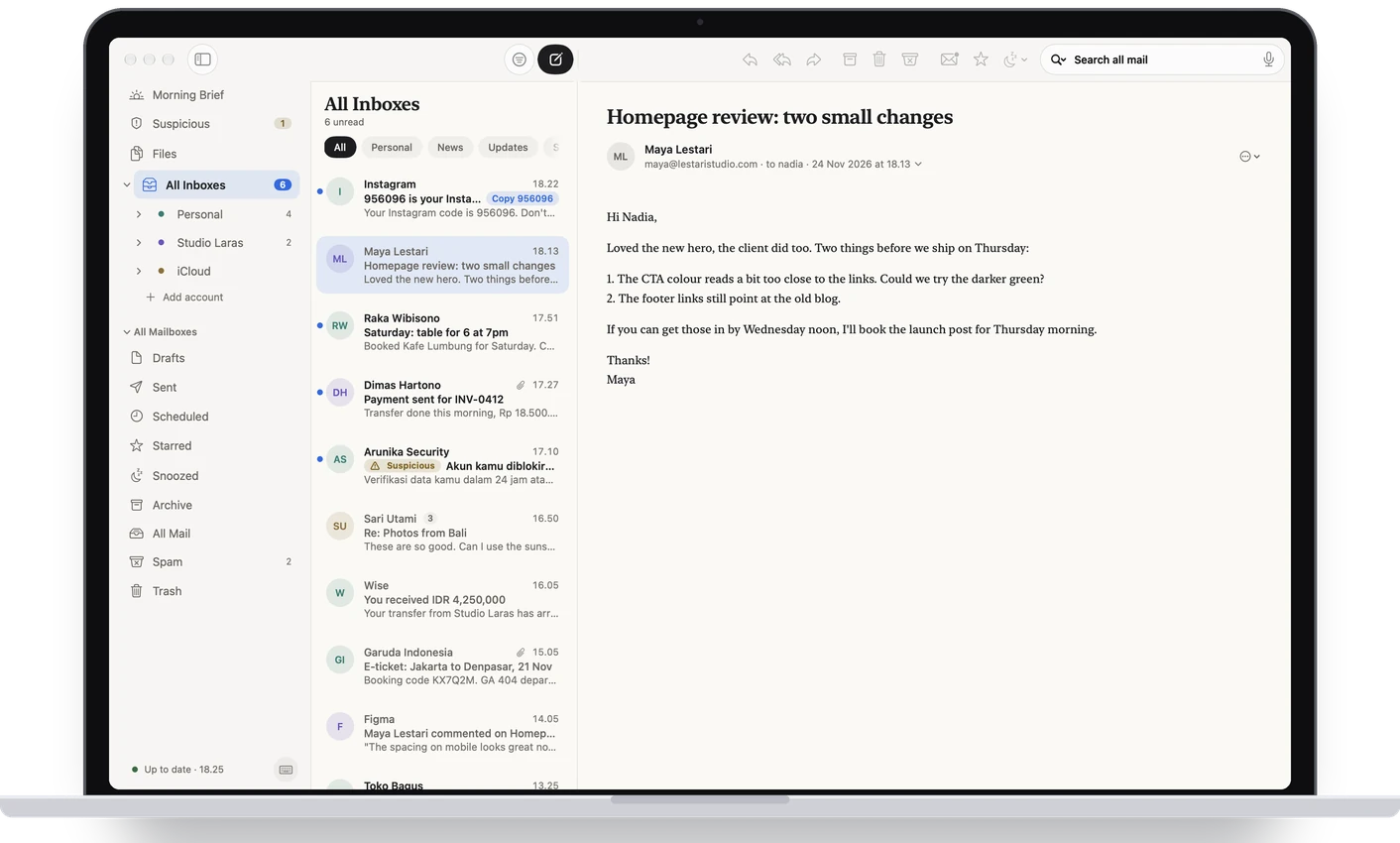
MailMind is the mail app I make for Mac, iPhone and iPad. On the Mac it reads Apple Mail's rules and signatures for you, so you don't have to rebuild them.
Go to Settings › Accounts › Import from Apple Mail…. Add your accounts in MailMind first, because signatures are matched to accounts you've already added.
- Signatures come across for those accounts.
- Rules arrive switched off. Nothing moves or deletes mail until you've looked each rule over and switched it on.
- Conditions: rules that check whether From, Subject or the body "Contains" some text.
- Actions: delete becomes move to Trash, move to Archive stays Archive, moving to another mailbox becomes a label, mark as read stays, and flag becomes a star.
Some rules can't come across, and MailMind tells you which and why instead of dropping them quietly. Those are rules that send an auto-reply, run an AppleScript, set a color, forward, redirect, show a notification or play a sound.
The import doesn't bring accounts. You sign in to each one in MailMind, and sign-ins are kept in the Apple Keychain. It also doesn't touch Gmail filters. Those keep running on Google's side, as they always did, and MailMind shows each one in plain words so you can add, change or delete it. Signatures you bring over follow you to all your devices, or you can save one to Gmail so the web uses it too.
For Gmail, the first sync brings in the newest 90 days, then fills in older mail in the background. Once you've set everything up, Settings › Advanced › Settings backup can export your rules, signatures and other settings to a file, so setting up a new Mac goes faster. Wondering how the two apps compare day to day? Read MailMind vs Apple Mail, or our fixes for Apple Mail with Gmail if you decide to stay.
Frequently asked questions
Will I lose my emails if I stop using Apple Mail?
Not for Gmail, iCloud or other IMAP accounts, because that mail lives on the server. Mail in On My Mac mailboxes and in POP accounts is stored only on your Mac, so export it first with Mailbox › Export Mailbox.
Where does Apple Mail keep rules and signatures?
In your Library folder, under Mail, in the newest V folder (V10 on recent macOS versions), inside MailData. Rules are in SyncedRules.plist and signatures are in the Signatures folder.
Do my Gmail filters stop working if I change mail apps?
No. Gmail filters run on Google's servers, so they keep sorting your mail whichever app you read it in.
Why are my imported rules switched off in MailMind?
So nothing moves or deletes mail before you have checked it. Look over each imported rule in MailMind, then switch on the ones you want.
A calm, private mail app for Mac, iPhone and iPad. Your mail stays on your devices, and the AI runs on them too. See what it does.
Get MailMind