Apple Mail is re-downloading all my mail: why, and what to do
Apple Mail re-downloads all your mail when it decides its local copy can't be trusted: after a mailbox rebuild, a damaged index, a macOS update, an account being removed and added again, or the mail server saying a folder has changed. Your mail on the server is safe. The fix is usually to let it finish, and to avoid steps that make Mail start over again.
Why does Apple Mail re-download everything?
Apple Mail keeps a full copy of your IMAP and Gmail mail on your Mac, plus an index that tracks every message. If either one looks wrong, Mail's safest move is to throw it away and fetch everything from the server. Here are the usual triggers.
You (or a guide) ran Mailbox › Rebuild
Rebuild is the most common cause. Apple's help page on rebuilding mailboxes says that for IMAP and Exchange accounts, the messages and attachments stored on your Mac are discarded and downloaded again. The mailbox looks empty until it's done. On a big Gmail All Mail folder, that takes a while.
Mail's index got damaged
Mail tracks your messages in an index database, a file named Envelope Index inside ~/Library/Mail. If Mail crashes, the disk fills up or the Mac shuts down mid-write, that index can break. When Mail notices, it rebuilds the index and may fetch mail again. Search often stops working first, which is a hint.
A macOS update
Big macOS updates sometimes change how Mail stores its data. On first launch, Mail converts or re-imports your mailboxes. Usually that is local work, but if anything doesn't match, Mail goes back to the server.
The account was removed and added again
Removing an account deletes its local copy. Adding it back means a full first download. People often do this as a fix, and it guarantees the slow path.
The server says a folder changed (UIDVALIDITY)
IMAP servers give each folder a number called UIDVALIDITY. If the server changes it, every mail app must assume its copy of that folder is out of date and fetch it again. This can happen after server maintenance, a mail provider migration, or a renamed and recreated folder. It's on the server's side, so there is nothing to fix on your Mac, but it explains why one folder suddenly reloads.
What should you do while it's re-downloading?
- Let it finish. Keep Mail open, the Mac plugged in and awake, and the internet on. Quitting halfway can mean starting over.
- Check disk space. A full disk is a common reason the index breaks in the first place. Leave room for the whole mailbox.
- Download less. In Mail › Settings › Accounts › Account Information, set Download Attachments to Recent or None. Apple notes that media attachments still download. Our Apple Mail storage guide has more ways to shrink it.
- Hide Gmail labels you don't need. In Gmail on the web, Settings › See all settings › Labels, uncheck Show in IMAP for labels you never read in Mail. Fewer folders, less to download.
- Back up local mailboxes first. Anything under On My Mac exists only on your Mac. Export it with Mailbox › Export Mailbox before you try any other fix. Our mailbox export guide walks through it.
What should you not do?
- Don't rebuild again and again. Each Rebuild starts the download over for that mailbox.
- Don't remove and re-add the account as a first step. It forces the biggest download of all.
- Don't delete files in ~/Library/Mail by hand unless you have a Time Machine backup and know exactly what you're removing. Guides that tell you to delete the Envelope Index work by forcing a full reindex, which is the slow thing you're trying to avoid.
- Don't assume mail is gone because a mailbox looks empty. For Gmail and IMAP, check the web version. If your mail is there, it will come back.
If Mail re-downloads after every restart, something keeps breaking the index. Check free disk space first. If you use a cleanup app, make sure it leaves Mail's folders alone.
How does MailMind sync without starting over?
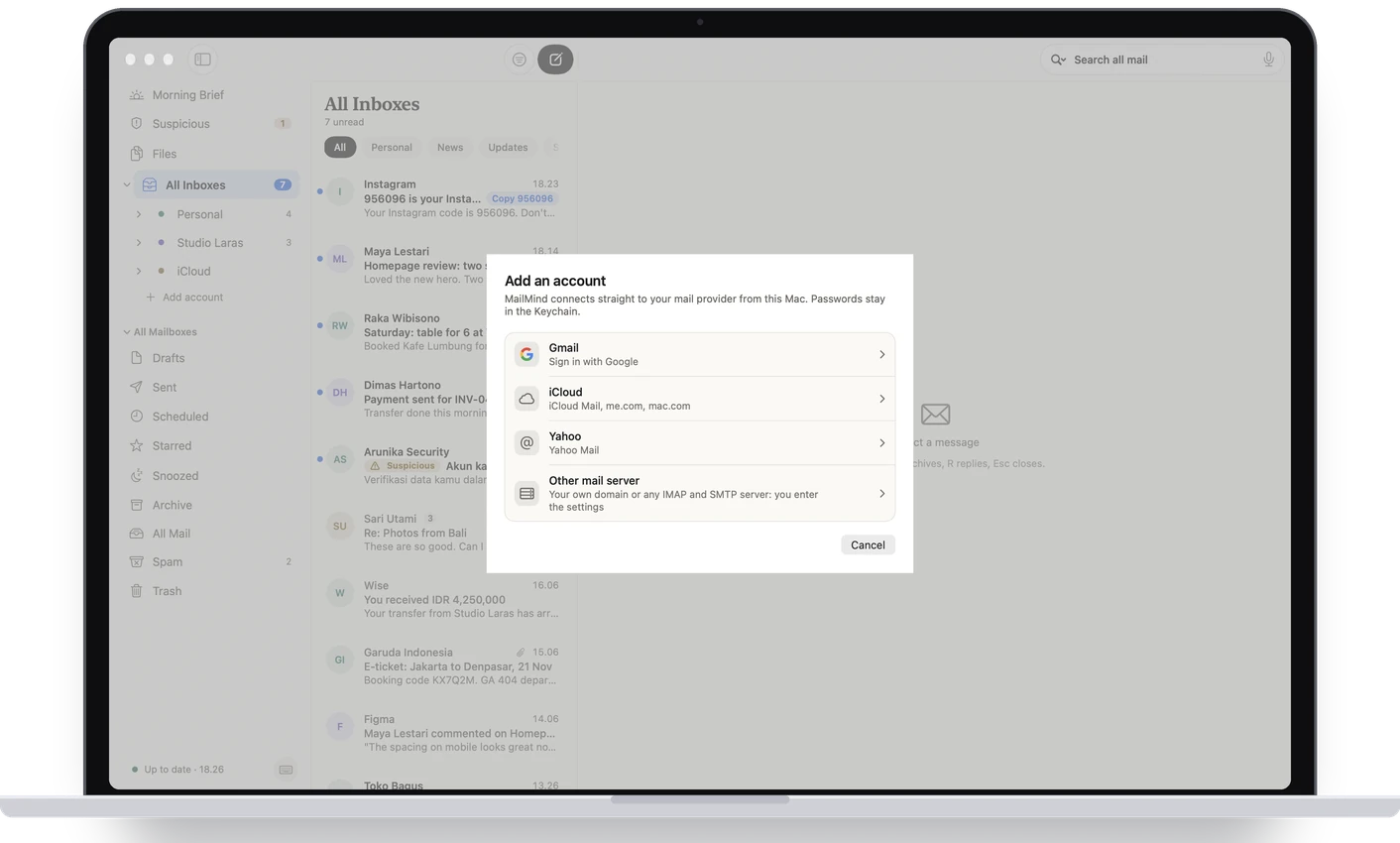
We designed MailMind's sync so that a full download is rare, and when it does happen, it tells you.
- Gmail: MailMind asks Gmail for only what changed since last time, using the Gmail History API. Google keeps that change history for a limited time. If it has expired, say after the app wasn't opened for a long while, MailMind does a full resync automatically and shows Resyncing this account. so you know why it's busy.
- IMAP (iCloud, Yahoo, your own domain): MailMind checks UIDVALIDITY per folder. If the server changes it, only that folder is fetched again, not the whole account. Where the server supports CONDSTORE, flag changes such as read and starred come down as small updates.
- No rebuild button. There's no Rebuild command in MailMind because there's no step that needs one. If you want to check for new mail right now, use Go › Sync Now (⌥⌘R).
- Less to download. On Mac, Settings › Advanced › Sync & Storage lets you keep 30 days, 90 days, 1 year or All mail per account for offline search. A new Gmail account syncs the newest 90 days first, then fills in older mail. Attachments download only when you open them.
Honest limits: if you delete and reinstall MailMind, it starts a fresh first sync, the same as any app. On Mac that means the newest 90 days first. And because your mail stays in Gmail or on your IMAP server, uninstalling or resyncing never loses mail.
If search stopped working at the same time as the re-download, see why Apple Mail search stops working. Thinking about moving on? Our MailMind vs Apple Mail comparison covers the differences.
Frequently asked questions
Why is Apple Mail downloading all my messages again?
Usually because Mail threw away its local copy and is fetching it from the server again. Common causes are a mailbox rebuild, a damaged index, a macOS update, removing and re-adding an account, or the server telling Mail a folder has changed.
How long does Apple Mail take to re-download everything?
It depends on how much mail you have and your connection. A large Gmail account can take hours or more. Keep the Mac awake, plugged in and online, and leave Mail open.
Will I lose email if Apple Mail re-downloads?
Not for Gmail, iCloud or IMAP accounts, because the server has the full copy. Mail kept only in On My Mac mailboxes is different, so back those up before you try fixes.
Should I rebuild my mailbox to fix it?
Only for one mailbox that shows wrong or missing messages. For IMAP and Exchange accounts, Apple says Rebuild discards the local copy and downloads it again, so it adds to the problem.
Does MailMind ever re-download everything?
Only when it has to. For Gmail it fetches just the changes, and does a full resync only if Gmail's change history has expired, with the status shown as Resyncing this account. For IMAP, a change on one folder refetches only that folder.
A calm, private mail app for Mac, iPhone and iPad. Your mail stays on your devices, and the AI runs on them too. See what it does.
Get MailMind