How to stop Gmail's AI (Gemini) reading your email
To stop Gemini using your Gmail, open Gmail on a computer, go to Settings › See all settings › General, click Manage Workspace smart feature settings, and turn off Smart features in Google Workspace. To also stop Gmail's own smart features, uncheck Turn on smart features in Gmail, Chat, and Meet on the same tab. Your mail still lives on Google's servers either way.
What does Gmail's AI do with your email?
Gmail has two layers of "smart" features. The older layer sorts mail into tabs, suggests words as you type (Smart Compose), offers quick replies (Smart Reply) and shows summary cards for packages and flights. The newer layer is Gemini, which can summarize threads, draft emails and find information across your Google account.
Both work by processing the content of your email. Google's help page also says that when smart features are on, "your data may be used to improve these features." For some people that is fine. Others would rather their inbox stayed out of it, especially for work, legal or medical mail.
Google splits this into three separate switches. Each one does something different, so it helps to know which is which.
How do I turn off Gemini in Gmail?
Gemini features in Gmail are controlled by the Google Workspace setting, not the Gmail one. On a computer:
- Open Gmail and click Settings (the gear), then See all settings.
- On the General tab, scroll to Google Workspace smart features.
- Click Manage Workspace smart feature settings.
- Turn off Smart features in Google Workspace. You can also turn off Smart features in other Google products, which covers things like Maps, Wallet and the Gemini app.
- Click Save.
The menu names come from Google's own help page, Learn about smart features and controls, which we checked in November 2026. Google renames things often, so check there if your screen looks different.
How do I turn off Gmail's other smart features?
On the same General tab, scroll to Smart features and uncheck Turn on smart features in Gmail, Chat, and Meet. Reload Gmail if the change doesn't show right away. The change applies to every device signed in to that account. If the Gmail app on your phone doesn't show it yet, update the app.
If you use a work or school account, your admin may set these defaults for everyone, and some options may be locked.
One detail worth knowing: in the European Economic Area, Japan, Switzerland and the United Kingdom, Google says these settings start switched off. Elsewhere they start on.
What do you lose when you turn them off?
| Setting you turn off | What stops working |
|---|---|
| Smart features in Gmail, Chat, and Meet | Primary, Social and Promotions tabs; Smart Compose; Smart Reply; summary cards for packages, travel and more |
| Smart features in Google Workspace | Gemini summaries and drafts in Gmail; flights and invitations added to Calendar; personalized search in Drive |
| Smart features in other Google products | Reservations in Maps, passes in Wallet, Personal Intelligence in the Gemini app and Search (personal accounts) |
The one people miss most is the inbox tabs. Without them, newsletters and receipts land in the same list as messages from people. Gmail filters can bring some of that back: send mail from a newsletter's address straight to a label and skip the inbox.
Google also says that turning a setting off stops future use of your content to improve those features, though what it already learned may remain.
Does turning it off mean Google can't read my email?
No. Turning off smart features changes which features use your mail. It does not move your mail anywhere. Your messages are still stored on Google's servers, because that is how Gmail works. No mail app changes that, MailMind included. If you want your mail off Google entirely, the only real answer is a different email provider.
What you can control is where any extra AI processing happens. That is where on-device AI comes in.
What are the on-device alternatives?
On-device AI means the model runs on your own Mac or phone, so the text of your email isn't sent to a server to be summarized. Apple's own apps use Apple Intelligence for some mail features; check Apple's privacy notes for where each feature runs.
A mail app can also connect to Gmail directly and run its AI on your device. You keep using your Gmail address, with Gemini switched off in Google's settings, and still get summaries when you want them. We explain what to check in an email app with on-device AI.
How does MailMind handle AI?
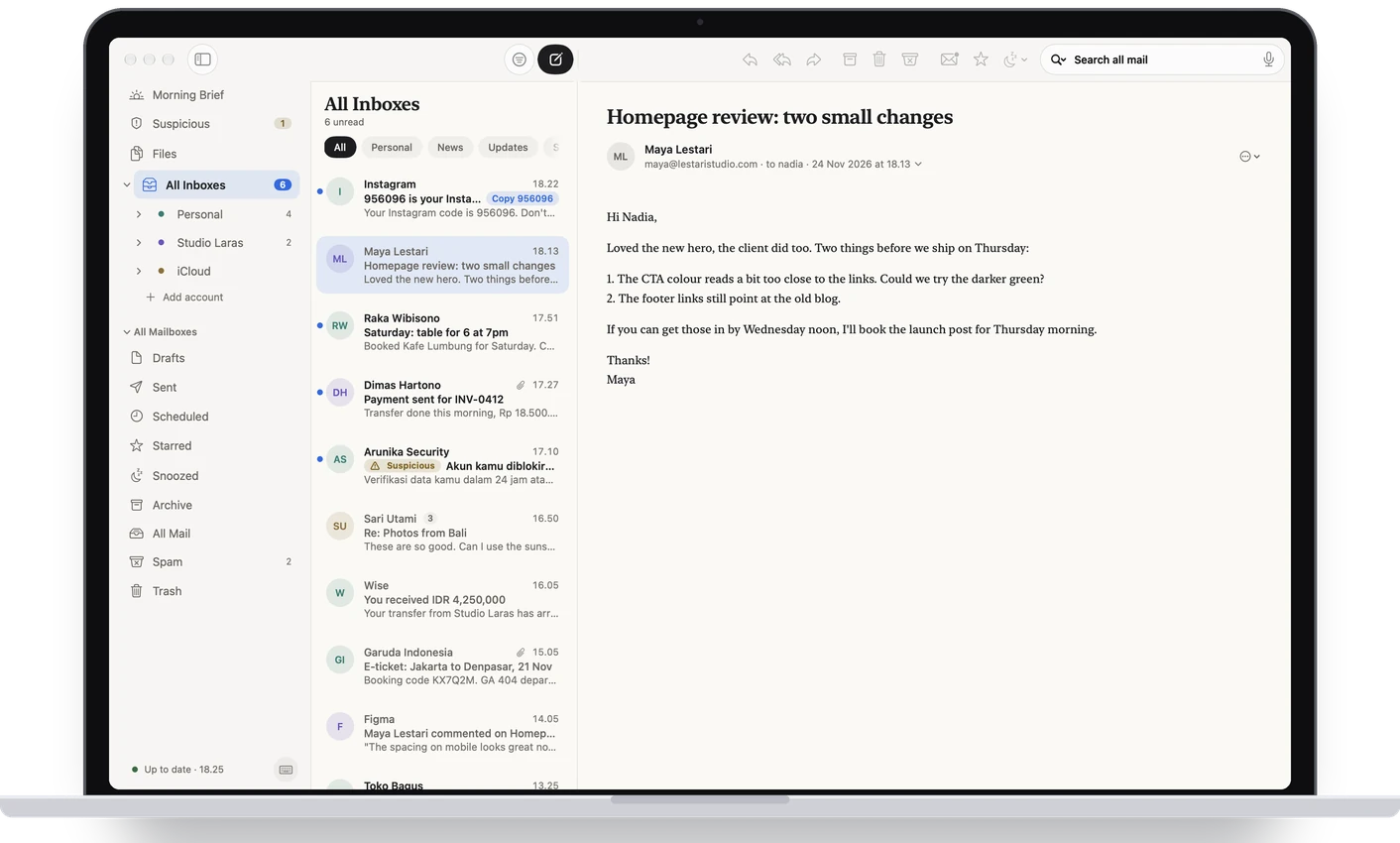
We built MailMind with this exact worry in mind. The rules are simple:
- Mac, iPhone and iPad. The AI features run on all three. On iPhone and iPad they are off until you turn Apple Intelligence on in MailMind's Settings, and Summarize and Suggest replies then sit under the email's subject.
- Apple's on-device model. Summaries and suggested replies use Apple's on-device model (Foundation Models). MailMind never sends your email to a cloud AI, and it doesn't use Apple's Private Cloud Compute either.
- Your switch. Turn it on or off in Settings › AI › Use on-device AI. If Apple Intelligence is off on your Mac, the AI features say why and stay off.
- No MailMind server. MailMind connects straight from your device to Google. There is no MailMind server that reads your mail, and your sign-in is kept in the Apple Keychain.
To be clear about the limit: your Gmail still lives at Google. MailMind doesn't change that. What it changes is that the AI part happens on your own device, and you can switch it off with one setting. AI writing (Rewrite and suggested replies) is part of MailMind Pro; reading and managing your mail is free.
You can read more in our privacy policy. If you are weighing other Mac apps, see every Gmail app for Mac, compared, or our look at Mac email apps without a subscription.
Quick checklist
- Gmail › Settings › See all settings › General.
- Manage Workspace smart feature settings: turn off Smart features in Google Workspace (this is Gemini). Save.
- Optional: uncheck Turn on smart features in Gmail, Chat, and Meet, and accept losing the inbox tabs.
- Repeat for every Google account you use. Each account has its own settings.
Frequently asked questions
How do I turn off Gemini in Gmail?
On a computer, open Gmail, click Settings, then See all settings. On the General tab, find Google Workspace smart features, click Manage Workspace smart feature settings, turn off Smart features in Google Workspace, and click Save.
Will turning off smart features break Gmail?
No, but you lose some extras: the Primary, Social and Promotions tabs, Smart Compose, Smart Reply and summary cards for things like packages and travel. Email itself keeps working.
Does turning off smart features delete my email from Google?
No. Your mail stays on Google's servers either way. The settings control which features use your content.
Do I need to change the setting on my phone too?
No. Google says the setting applies across every device where you are signed in to that account. Update the Gmail app if a change doesn't show up.
Does MailMind send my email to an AI service?
No. MailMind's AI runs on your Mac, iPhone or iPad, using Apple's on-device model. It never uses a cloud AI or Private Cloud Compute, and it stays off until you turn it on.
A calm, private mail app for Mac, iPhone and iPad. Your mail stays on your devices, and the AI runs on them too. See what it does.
Get MailMind