Email keyboard shortcuts on Mac: how to triage with single keys
Apple Mail's keyboard shortcuts all use modifier keys, such as Command-R to reply and Control-Command-A to archive. Gmail on the web has true single-key shortcuts, like e to archive and j and k to move between emails, but you have to turn them on in Settings first. Pick one set, learn five keys, and your hand stops reaching for the mouse.
What are Apple Mail's keyboard shortcuts?
These come from Apple's Mail keyboard shortcuts page. Apple notes that some can differ with your language and keyboard layout, so check the menus if one doesn't work.
| Action | Apple Mail |
|---|---|
| New email | Command-N |
| Reply | Command-R |
| Reply All | Shift-Command-R |
| Forward | Shift-Command-F |
| Archive | Control-Command-A |
| Mark as read or unread | Shift-Command-U |
| Move to Junk | Shift-Command-J |
| Move to the predicted mailbox | Control-Command-M |
| Get new mail | Shift-Command-N |
| Send | Shift-Command-D |
| Turn the message filter on or off | Command-L |
The Delete key moves the selected email to Trash, and the arrow keys move up and down the list. If you'd like a different key for a menu command, add one in System Settings › Keyboard › Keyboard Shortcuts › App Shortcuts.
How do I turn on Gmail keyboard shortcuts?
Gmail's single-key shortcuts are off until you switch them on:
- In Gmail on the web, click the gear icon, then See all settings.
- On the General tab, scroll to Keyboard shortcuts and choose Keyboard shortcuts on.
- Click Save Changes at the bottom.
Google's full list is on its Gmail keyboard shortcuts page. The ones you'll use every day:
| Key | What it does in Gmail |
|---|---|
j / k | Older / newer conversation |
e | Archive |
# | Delete |
r / a / f | Reply / reply all / forward |
c | Compose |
s | Star or unstar |
Shift + i / Shift + u | Mark read / mark unread |
! | Report spam |
x | Select a conversation |
/ | Jump to search |
? | Show every shortcut |
If nothing happens when you press a key, the cursor is probably in a text box. Click the email list and try again.
What's a fast way to triage email with the keyboard?
Shortcuts only save time if you use them in a routine. This one works in any app:
- Start at the top and decide, don't read. Look at the sender and subject. Most mail needs a second, not a minute.
- Archive what you've seen. Receipts, notifications and FYIs: one key and they're gone from the inbox but still searchable.
- Delete or report what you never wanted. Delete for clutter, report spam for spam.
- Reply now if it takes two minutes or less. Then archive it.
- Star or flag anything bigger. Come back to those at a set time instead of letting them sit at the top of the inbox.
- Stop when you reach the end. An empty inbox is a finish line. Close the app.
If you skip mail you can't decide on, you'll see it again tomorrow. Make a choice on each one, even if the choice is "star it for later".
What single keys does MailMind use on Mac?
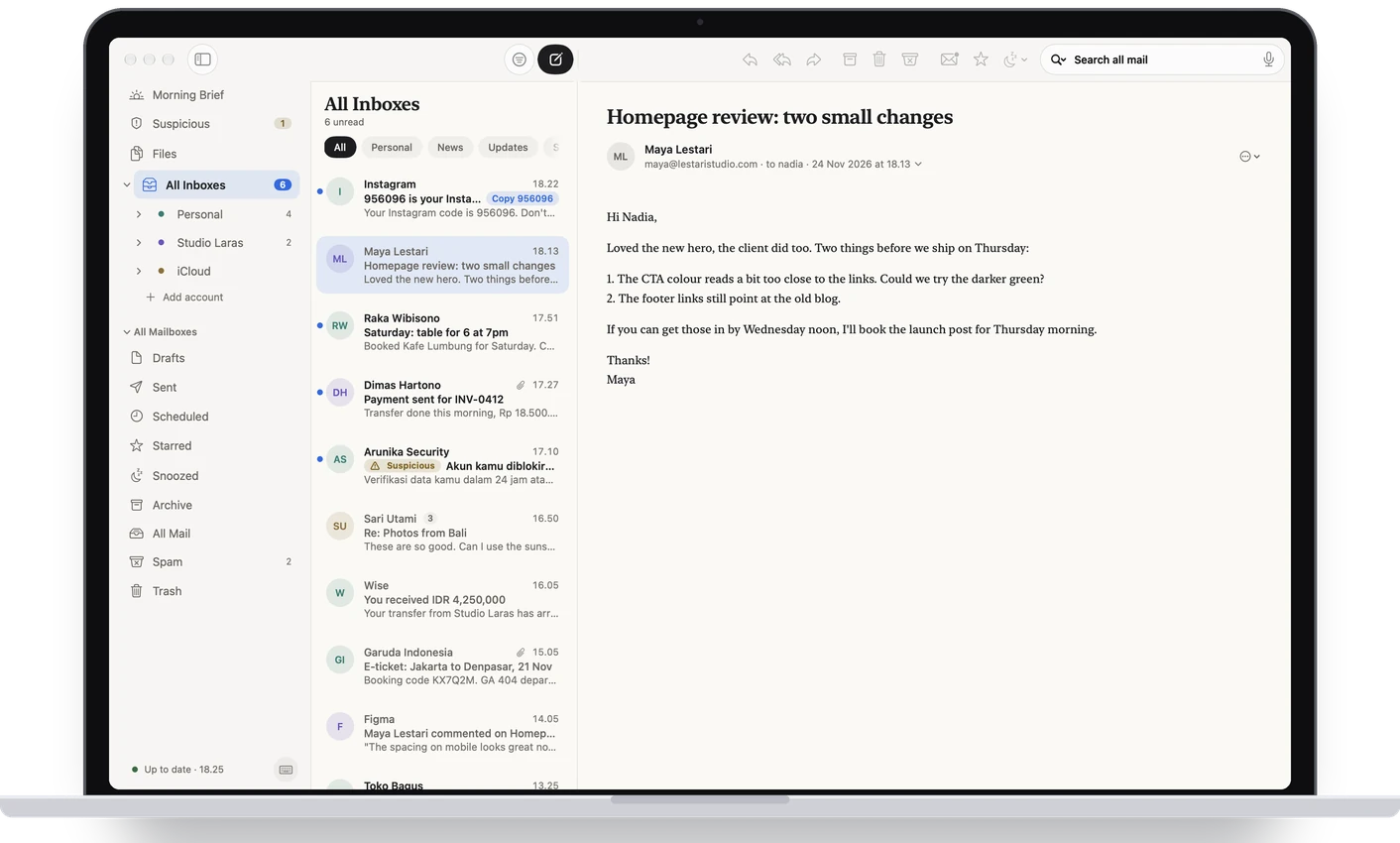
MailMind is a mail app for Mac, iPhone and iPad. On Mac, the triage keys work without a modifier, straight away, with nothing to switch on:
| Key | What it does in MailMind |
|---|---|
J / K | Next / previous email |
E | Archive |
# | Move to Trash |
U | Mark read or unread |
S | Star |
! | Report spam |
R | Reply |
| ← / → | Move between panes |
| Space | Page down |
? | Show the Keyboard shortcuts sheet |
The rest use the Command key, as in any Mac app: ⌘N new email, ⌘R reply, ⇧⌘D send, ⇧⌘R reply all, ⇧⌘F forward, ⌘F search, and ⌘K for the command palette, which finds any action by name. ⌘1 to ⌘9 jump between inboxes, and ⌘B opens the Morning Brief. ⌘Z undoes your last action, such as an archive, a move or a trash.
Already know Gmail's keys? On a Mac, turn on Use Gmail keyboard shortcuts in Settings › Inbox, and MailMind uses Gmail's own keys, two-key ones like g then i included, so your hands don't have to learn a second set.
One setting decides what happens after you archive or delete: Settings › Reading › After archiving or deleting can open the next email, open the previous one, or go back to the list.
What is Inbox Sprint?
Inbox Sprint is the triage routine above, built in. Start it with Go › Start Inbox Sprint (⇧⌘S) and work through your inbox with single keys: E archive, # trash, U read or unread, R reply, → to skip, ← to go back, and Esc to end. It's part of MailMind Pro and runs on Mac.
Moving from Apple Mail? Our MailMind vs Apple Mail comparison covers the rest of the differences. And if speed is what you're after, Gmail search operators find old mail as fast as these keys clear new mail.
Frequently asked questions
Does Apple Mail have single-key shortcuts?
Apple's list of Mail shortcuts uses modifier keys, such as Command-R to reply and Control-Command-A to archive. The Delete key and the arrow keys work on their own.
How do I turn on keyboard shortcuts in Gmail?
In Gmail on the web, click the gear icon, then See all settings. On the General tab, choose Keyboard shortcuts on, then click Save Changes.
Why aren't my Gmail keyboard shortcuts working?
Shortcuts are off by default, so check they're turned on in Settings. Also make sure the cursor isn't in a text box, such as the search field or a reply.
What is Inbox Sprint in MailMind?
A built-in triage mode on Mac, part of MailMind Pro. Start it with Go › Start Inbox Sprint, then use E to archive, # to trash, U for read or unread, R to reply, the arrow keys to skip or go back, and Esc to end.
A calm, private mail app for Mac, iPhone and iPad. Your mail stays on your devices, and the AI runs on them too. See what it does.
Get MailMind