How to check if an email sender is real: SPF, DKIM and DMARC in plain words
Open the email's full headers and look for three results: SPF, DKIM and DMARC. If all three say pass, the email really came from the domain in the From line. Then check that domain letter by letter, and check where the links really go, because a scammer's own look-alike domain can pass all three.
What are SPF, DKIM and DMARC?
They are three checks your mail provider runs on every email that arrives. You don't have to set anything up to use them as a reader. Here is each one in a sentence:
- SPF is a public list, published by a domain, of the mail servers allowed to send email for it.
- DKIM is a digital signature the sending server adds, which proves the domain sent the email and that nobody changed it on the way.
- DMARC is the domain's own rule that ties SPF and DKIM to the address you see in the From line, and tells providers what to do with mail that fails.
Think of a letter from your bank. SPF checks that it came from the bank's post room. DKIM checks the wax seal. DMARC checks that the name on the envelope matches the post room and the seal, and tells the post office to bin it if not.
How do I check if an email is authenticated in Gmail?
Gmail gives you a quick look and a detailed one.
The quick look. Open the email and click the small down arrow below the sender's name. If you see a "mailed-by" line and a "signed-by" line with a domain, the message is authenticated. Google explains this in Check if your Gmail message is authenticated. A question mark next to the sender's name means Gmail couldn't verify it. Be careful with replies and attachments from those.
The detailed look.
- Open the email on gmail.com.
- Click More (the three dots) next to Reply.
- Choose Show original.
A new page opens with the full header. Find the line that starts with Authentication-Results. Google's own DKIM setup guide says to look there for dkim=pass, and the same line shows spf= and dmarc= results with the domain each was checked against. Gmail usually repeats SPF, DKIM and DMARC as a short PASS or FAIL summary at the top of the page too.
How do I check the headers in Apple Mail on a Mac?
Apple Mail doesn't summarize the results, but the receiving server writes them into the email for you. Apple's guide to showing detailed headers in Mail on Mac covers the menu:
- Open the email.
- Choose View › Message › All Headers.
- Find the line that starts with Authentication-Results. It reads something like spf=pass, dkim=pass, dmarc=pass, with domains next to each.
- Choose View › Message › Default Headers to tidy up again.
View › Message › Raw Source shows the whole email as text, if you want everything. Search it for "Authentication-Results" with ⌘F.
What does a pass NOT prove?
This is the part most guides skip. A pass tells you one thing: the email came from the domain in the From line. It doesn't tell you who owns that domain.
- Look-alike domains pass too. A scammer can buy bca-verifikasi.com or paypa1.com today, set up SPF, DKIM and DMARC in ten minutes, and get three passes.
- Hacked accounts pass. If a real supplier's mailbox is broken into, the scam comes from their real domain.
- Display names prove nothing. "Apple Support" in bold can sit on top of any address. Look at the address, not the name.
The reverse is also true. A fail isn't always a scam. Forwarded mail and mailing lists often break SPF or DKIM for honest senders. A DMARC fail on a big brand's domain is the one to take seriously, since those brands set strict rules.
How do I spot a look-alike domain?
Read the domain after the @ slowly, from right to left. The part just before .com, .co.id or .co.uk is the one that matters.
- Swapped letters: rn for m, 1 for l, 0 for o.
- Extra words: brand-security.com, brand-verify.net.
- The brand as a subdomain: brand.com.login-check.io belongs to login-check.io.
- Letters from other alphabets that look Latin. These are hard to see by eye.
How do I check where a link really goes?
Hold the pointer over the link without clicking. In a browser, the real address appears in the bottom corner. In Apple Mail, it appears in a small tag next to the pointer. On iPhone, touch and hold the link to see a preview with the address.
If the text says one site and the address says another, don't click. Go to the company's site by typing the address yourself.
How does MailMind check senders for you?
MailMind is the mail app I make for Mac, iPhone and iPad. Its sender checks are called Scam Shield, and they're free. It reads the same SPF, DKIM and DMARC results described above, and adds the look-alike and link checks you'd otherwise do by hand.
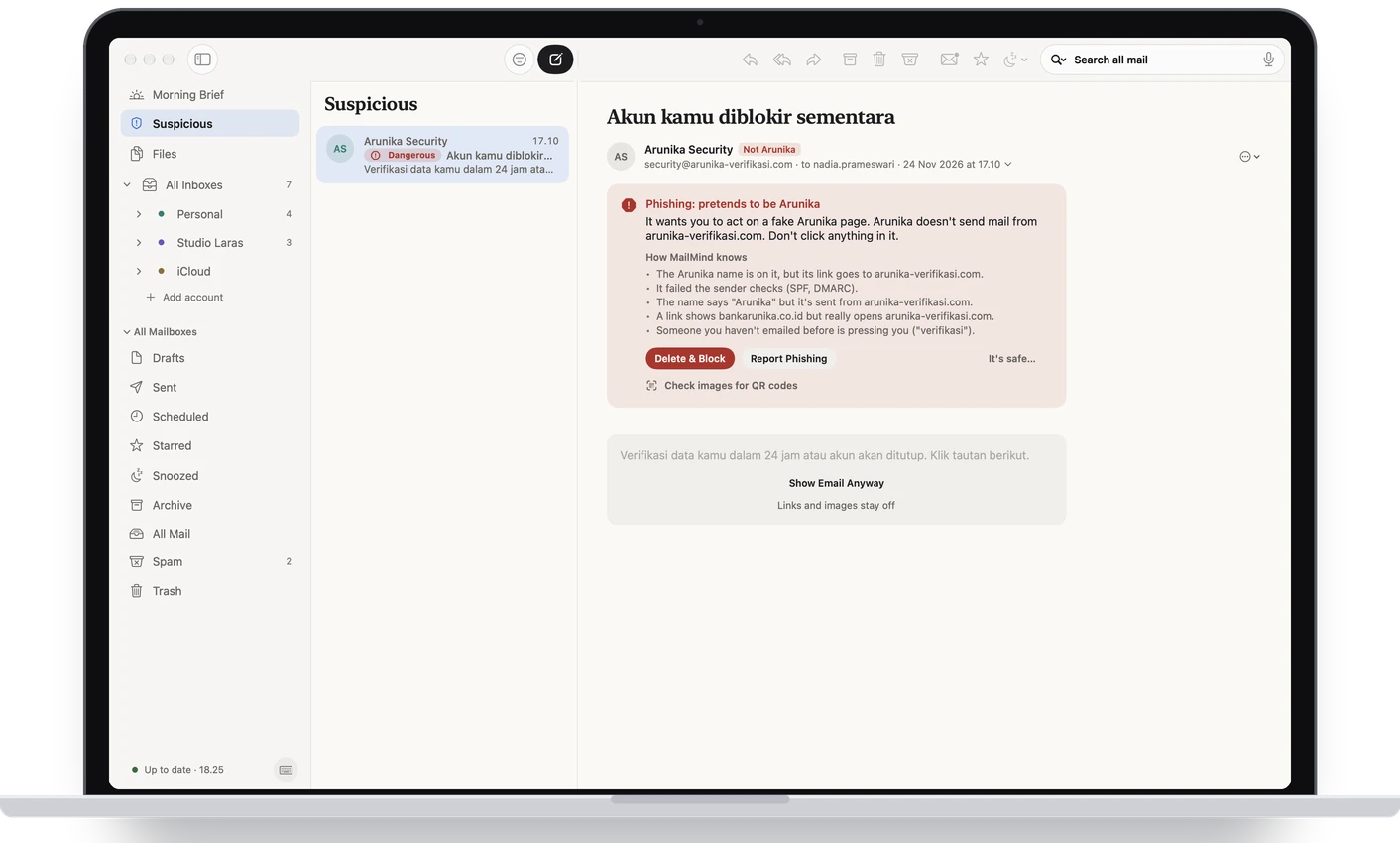
Instead of a badge, it tells you the reason in plain words. Here are some of the real lines it shows:
- "It failed the sender check that bca.co.id uses to block fakes (DMARC)."
- "It failed the sender checks (SPF, DKIM)."
- "It couldn't be verified as really coming from bca.co.id."
- "bca-verifikasi.com looks like bca.co.id but isn't."
- "A link shows bca.co.id but really opens bca-verifikasi.com."
- "A link hides where it goes."
It also flags letters from other alphabets mixed into a name, a change of payment details, requests for gift cards or crypto, a reply-to address on a different domain, pressure words, and mail that fakes your own address. Mail it's worried about gets a plain title such as "Phishing: pretends to be BCA" or "This looks suspicious", and lands in the Suspicious mailbox in the sidebar (⌃⌘1 on the Mac).
Like Gmail's quick look, MailMind lets you check the details yourself: tap the addresses under the sender's name to see From, To, Cc, the date, and Mailed-by and Signed-by. Mail from a company with an official trademark certificate shows its verified logo when you open it.
On the Mac, Link X-ray covers the hover step. Click a marked link and MailMind shows "This link goes to" and the real domain, with Copy Address or Open Anyway… if you still want to go. Remote images and tracking pixels stay blocked until you trust the sender.
These checks run on your device. No MailMind server reads your mail. If Scam Shield gets one wrong, you can report it: only the domain and the reasons are sent, never the email, and you can turn reporting off in Settings. See our privacy policy for the details, or read about copying one-time codes from email safely, which skips codes from flagged mail.
Frequently asked questions
What does SPF, DKIM and DMARC PASS mean?
It means the email really came from the domain shown, and that the domain approved it. It does not mean the domain belongs to the company it claims to be, or that the message is safe.
How do I see SPF, DKIM and DMARC results in Gmail?
Open the email, click More next to Reply, and choose Show original. Find the line that starts with Authentication-Results. It should read spf=pass, dkim=pass and dmarc=pass, with the domain each was checked against.
How do I see email headers in Apple Mail on a Mac?
Open the email and choose View › Message › All Headers. Look for the line that starts with Authentication-Results. Choose View › Message › Default Headers to go back.
Can a scam email pass SPF, DKIM and DMARC?
Yes. A scammer can register a look-alike domain and set up all three checks for it. Mail sent from a hacked real account also passes. Always check the domain spelling and where links lead.
Is a failed DKIM or SPF check always a scam?
No. Forwarded mail and mailing lists can break these checks for honest senders. A failed DMARC check on a well-known brand's domain is a much stronger warning sign.
A calm, private mail app for Mac, iPhone and iPad. Your mail stays on your devices, and the AI runs on them too. See what it does.
Get MailMind